Your plan, archiving, and deleting
Your membership sets how many products and ingredients you can have. Clearing things out interacts with that allowance, and it works differently for products and ingredients: a product is archived and can be brought back, an ingredient is deleted and cannot. This page covers both.
What counts towards your plan
Two things are capped: products and ingredients. Nothing else is — labels, orders, images, and storefront items are unlimited on every plan.
Only what you can actually use counts. An archived product and an ingredient marked inactive do not consume a slot.
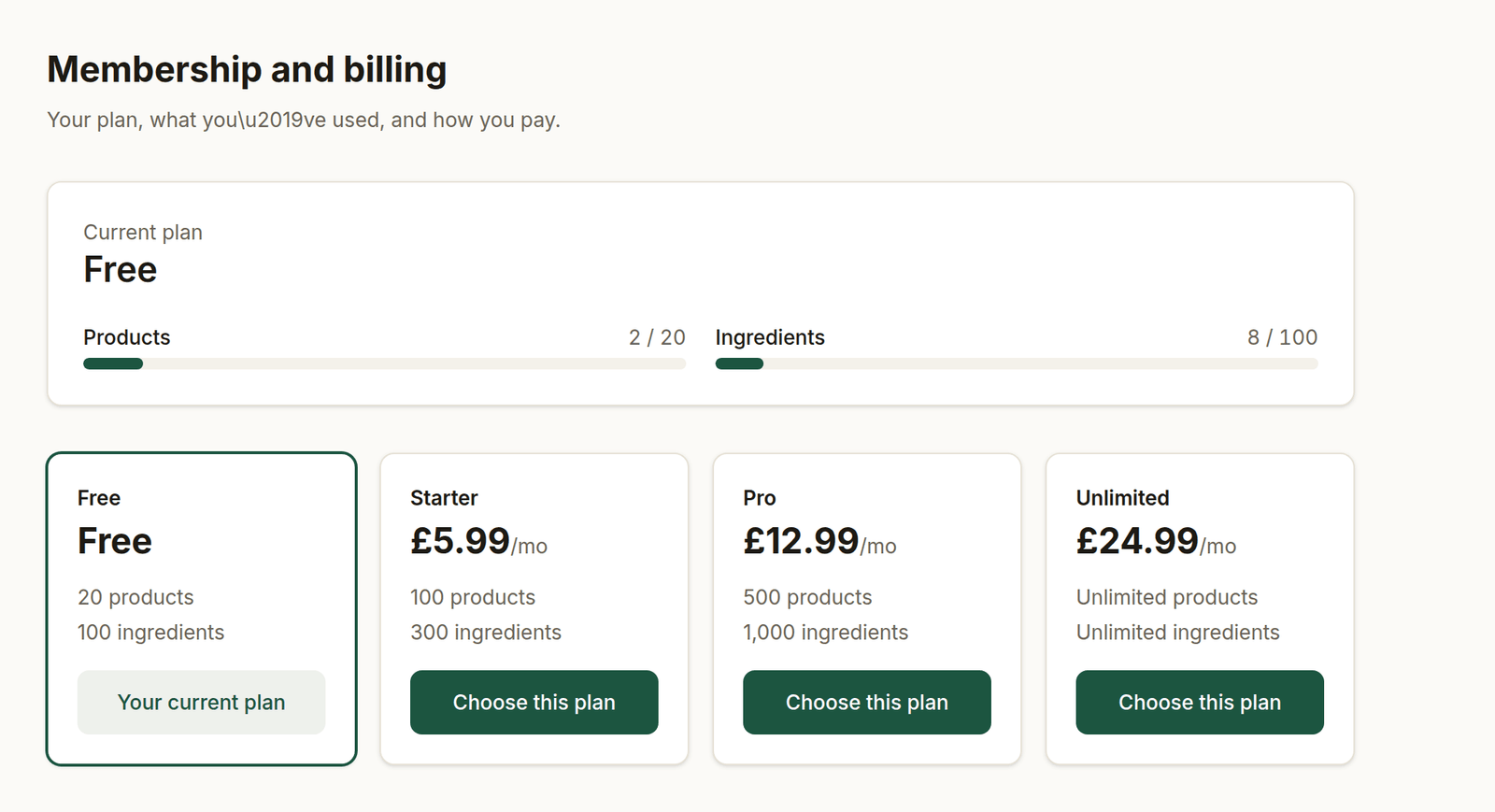
Settings → Billing shows what you've used against your plan, and is the authoritative list of what each plan includes.
The plans
| Plan | Products | Ingredients | Users |
|---|---|---|---|
| Free | 20 | 100 | Just you |
| Starter | 100 | 300 | No limit |
| Pro | 500 | 1,000 | No limit |
| Unlimited | No limit | No limit | No limit |
These are the standard allowances; your account's actual limits and current usage are shown on Settings → Billing, which is always the authoritative figure.
Every plan, Free included, comes with your shop page: a public page showing your products with photos and allergens, your opening hours, and how customers can order from you. Set it up and publish it under Settings → Shop page. Customers get in touch with you to order, by phone, email, Instagram or Facebook, whichever you've filled in. Untick any you'd rather not be contacted on under Ways to get in touch; they come off the shop page but stay saved. You can show your prices or hide them if you quote per order. Make it your own with the Banner at the top of the page: your own heading, a line of text and a photo behind them, with a preview as you type.
Want customers to order on the page instead? Use Ask for online ordering under Settings → Shop page. Once we've turned it on for your bakery, you switch Take orders online on when you're ready, and off again whenever you like.
Once your shop page takes orders, you can also run drops: a set number of things for sale until a cutoff, ready on a day you choose (or over a few days, with the customer picking which). Set one up under Drops: what's for sale and how many, when orders open and close, and when it's ready. Tick Show on my shop page when it's ready to go. Customers see how many are left as it sells, and once something has gone, nobody else can order it. While a product is in a drop, it's only sold through the drop. After the cutoff, the drop's page lists what to bake and the orders to pack. Copy for next week sets up the next one with the same things and times. If you only sell through drops, untick Take made-to-order orders under Settings → Shop page.
In the last two days before a drop opens or closes, your shop page counts down to it. Max each on an item limits how many one customer can order across the drop, going by their email address. Orders you enter yourself can go in a drop too; they count against its stock, and you can go over if you need to.
If you've set up your email under Settings → Order emails, your shop page also offers Never miss a drop. People who sign up confirm by email first, and every email has a link to stop them. When a drop is published, press Email them about this drop on its page to tell everyone on the list (once per drop).
To post orders, tick Post under Settings → Collection & delivery and set your postage per order: one fixed price, whatever's in the order, since it all goes in one parcel. You can also set an amount over which postage is free. Anything that can't travel (fresh cream, say) can be marked Can't be posted on its product or box page, once it's shown in your shop: an order with one of those in it isn't offered post. Add how many days' notice you need and a line saying how you post (for example, UK only). Customers give their address at checkout and see the day it'll be posted: the first day after your notice that you haven't blocked, or a drop's first day. Delivery orders now ask for an address too.
When you've posted an order, open it (or find it in its drop's order list), choose the carrier, add the tracking number if there is one and press Mark as posted. The customer gets an email that it's on its way, with a link to track it, and sees the same link under their orders. You can turn that email off under Settings → Order emails.
A drop's page also shows how it sold: takings (and how much is still to be paid), orders, how much of it went, how long it took to sell out, and what each item took. The Drops list shows each drop's takings, so you can compare one week with the next.
A product appears with its allergens only if it has a current approved label. Otherwise its page shows an Ask us about allergens button, and you're told which products those are when you add them.
If your shop page takes orders online, you can also take card payments: connect a Stripe account of your own under Settings → Shop page → Card payments, then choose whether customers pay by card at checkout, choose between card and paying you on collection or delivery, or don't pay by card at all. The money goes to your Stripe account and on to your bank; Stripe takes its fee from each payment and we take nothing. An order paid by card arrives already marked paid. Refunds are made in your Stripe account, and an order refunded in full there is marked refunded here.
Every paid plan, from Starter up, also includes:
- Your own domain: your shop page on an address like
mybakery.co.ukinstead of the shared one. The domain has to be one you already own: request it from Settings → Shop page, and we'll send you the address to point it at with whoever you bought it from. Once it points at us, we set it up and email you when it's live. If you don't own a domain yet, we can register one for you, at an extra cost on top of your plan. Contact support. - The recipe book.
- Your team: invite the people you work with from Team. See Your team.
Moving back to Free never deletes anything on your shop page.
What happens when you reach the limit
Creating a new product or ingredient is blocked, with a message naming your plan and its limit. Nothing you already have is affected: if your allowance ever drops below what you already hold, everything existing keeps working and stays editable — only new additions are stopped.
Imports are subject to the same limit, so a CSV import can stop part-way through once the cap is reached.
To carry on, either upgrade on Settings → Billing, or free up slots by clearing out what you no longer need.
Archiving a product
Products are never destroyed. Archive hides one rather than deleting it:
- it disappears from your product list, your storefront and any menus it is on,
- it stops counting towards your plan,
- its recipe, costs, and label history are all kept.
To see archived products, use the Include archived toggle on the Products page. Archived products appear dimmed with an Archived badge and a Restore button that puts them back exactly as they were.
A restored product counts towards your plan again, so restoring is worth doing deliberately if you are close to your limit.
Deleting a product for good
Archiving is enough for almost everything — it frees the plan slot, which is the usual reason for clearing a product out. When you genuinely want it gone, tick Delete it permanently instead on the archive dialog, or choose Delete permanently from an archived product's menu. The recipe, the images and every label version with its approval history are destroyed, and there is no Restore.
BakeCheck refuses a permanent delete while anything real still points at the product, and says which of these it is:
- it appears on an order — order lines take their description from the product, so deleting it would leave a blank line in your own sales history,
- it is part of another product's recipe — it would drop out of that recipe, changing its cost and invalidating a label that may already be on a box,
- it is in a box — the box would be left with a missing item.
In every one of those cases the product is archived instead, which hides it and frees the slot.
The record it leaves
A permanent delete is written to Settings → Account history, and that entry is kept for good. It records what was deleted, when, and by whom, and it keeps a copy of every label version the product had — including the wording, who approved it and when.
That entry is the only place a deleted product's label history still exists, so if you are ever asked to account for a declaration that went out on a box, this is where to look. Archiving is reversible and is not recorded here.
Deleting an ingredient
Deleting an ingredient is permanent — there is no Restore for ingredients, because a deleted ingredient would leave the products that used it with a hole in their recipe and their label.
For that reason BakeCheck refuses to delete an ingredient that is used in any product that isn't archived. You will see:
Cannot delete ingredient that is used in products. Mark as inactive instead.
You have two ways forward:
- Mark it inactive (recommended). Edit the ingredient and untick Active. It stays attached to the products that use it, their costs and labels keep working, it drops out of the pickers when you build new recipes — and it stops counting towards your plan. This is the right move for something you've stopped buying.
- Remove it from the products first. Take the ingredient off every recipe that uses it, then delete it. Remember that a product you archived no longer blocks the ingredient, so you may only need to clear the live ones.
Tick Show inactive on the Ingredients page to list your inactive ingredients.
Freeing up space, in order
- Archive products you no longer make — instant, reversible, frees a slot each.
- Mark ingredients inactive if you've stopped buying them — reversible, frees a slot each, and doesn't disturb existing recipes or labels.
- Delete ingredients only when nothing uses them and you're sure.
If you have done all of that and your usage still looks wrong, see troubleshooting.
Next: troubleshooting.