Troubleshooting
The things people hit most often, and what to do about each.
"Label generation is blocked — ingredients are missing label data"
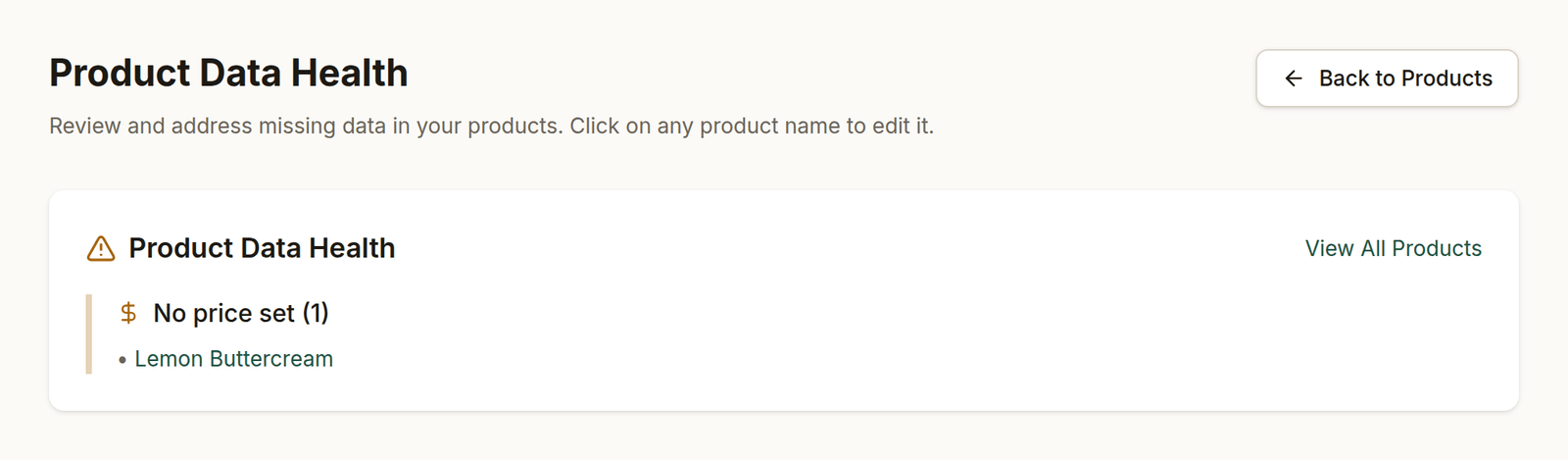
Products → Data Health lists every product with something missing, so you can fix them in one pass.
What you'll see: a red panel in the label window listing ingredients, the Generate Label button greyed out, and a Data missing badge next to the offending rows in the combined ingredients table.
Why: a label cannot be built from ingredients whose composition or allergens haven't been filled in. A blank allergens field is not a statement that the ingredient is allergen-free — it means nobody has said yet — and BakeCheck will not turn silence into a "contains no allergens" claim on a printed label.
Fix: the panel names every ingredient to correct. For each one, open Ingredients, edit it, and fill in:
- Composition — what it's made of. For a single raw ingredient this may just be its own name.
- Allergens — the allergens it contains, or
Noneif it genuinely contains none of the 14. The Declare no allergens link under the field fills that in for you.
To find them all at once, use the Missing allergens and Missing composition filters on the Ingredients page. The Dashboard's Product Data Health card also lists every product that is blocked for this reason.
If you don't recognise the ingredient named: it is probably inside a sub-recipe. A product used as a component brings all of its own ingredients with it, so an incomplete ingredient several levels down blocks everything built on top of it. See Allergens.
"Allergen check failed"
What you'll see: a red panel naming specific allergens, and Approve stays disabled.
Why: the draft label doesn't emphasise an allergen that your ingredients say is present. The check is deterministic — it compares the allergens rolled up from your recipe against the allergens actually written in CAPITALS in the label text. A failed label can never be approved.
Fix: first check whether the allergen is real. If it is, click Regenerate — most failures clear on a second pass. If it keeps failing, the ingredient data is usually the cause: an allergen listed on an ingredient that isn't in its composition, or a spelling the label didn't pick up. Correct the ingredient, then regenerate.
You cannot fix this by editing the label text, because label text isn't editable — see below.
"Label out of date"
What you'll see: a Label out of date badge on the product, and an orange warning in the label window.
Why: the approved label no longer matches the recipe. Something changed: an ingredient added or removed, a quantity edited, or the composition or allergens of an ingredient anywhere in the recipe — including inside a sub-recipe, or through a shared-library update you accepted.
Fix: generate a new label and approve it. The previous version is kept in the history; nothing is lost.
Until you do, printing and export are turned off for that product. Copy, Print and PNG disappear from the label window, and the reason is shown in their place. The label already on your storefront and any labels already on packaging stay exactly as they are — nothing is withdrawn, and nothing you have printed becomes invalid. What stops is producing new copies of a declaration the app can see no longer matches your recipe.
The same applies to a label approved before its ingredients had a full allergen declaration: it stays in use, but it cannot be reprinted until the ingredient data is declared and the label regenerated. See Allergens for how to declare them.
"You've reached your plan limit"
What you'll see: a message naming your plan and its limit when you try to add a product or ingredient. Imports stop part-way through for the same reason.
Why: each plan caps how many products and ingredients you can have. Only live records count — archived products and inactive ingredients don't.
Fix: check Settings → Billing for your actual usage and limits, then either upgrade, or free up slots.
If you've cleared things out and the count hasn't moved, work through these:
- Check which limit you've hit. Products and ingredients are counted separately. Archiving products does nothing for an ingredient limit.
- Did the ingredient actually delete? Ingredients used in a live product refuse to delete (see below). If you dismissed that message, the ingredient is still there and still counting.
- Inactive is what frees an ingredient slot. For ingredients that are in use, marking them inactive is the release valve — deleting isn't available to you.
- Restored products count again. Anything you put back with Restore is live once more.
- Still stuck? Send us the numbers from Settings → Billing and we'll look at the account.
Full detail in Your plan, archiving, and deleting.
"Cannot delete ingredient that is used in products"
Why: the ingredient is on the recipe of at least one product that hasn't been archived. Removing it would leave those products with an incomplete recipe and an inaccurate label, so BakeCheck won't do it.
Fix: either mark the ingredient inactive (keeps existing recipes and labels intact, frees the plan slot, hides it from new recipes), or remove it from every live product first and then delete it. Products you've already archived don't block the deletion.
"You already have an ingredient called ..."
Why: you can hold the same ingredient several times over — Plain Flour from two suppliers, or the 500 g bag alongside the 16 kg sack — because each has its own cost. What you can't have is two rows that are identical in name, supplier and pack size, because nothing would tell them apart in a recipe.
Fix: fill in the supplier or the pack size that makes this one different. If it really is the same thing you already have, edit the existing ingredient instead of adding a second copy.
This most often shows up during a CSV import, where the same ingredient appears twice in the sheet under slightly different spellings.
"Confirm your email address to approve labels"
Why: approving a label records you, by name and email, as the person who took responsibility for that declaration. That record is only worth something if the address on it is one you have proved you control.
Fix: click the link in the verification email we sent when you signed up, or use Send me the link again in the label window. Nothing else in BakeCheck is affected — you can keep building recipes, generating drafts, and running your storefront while unverified. Only approval waits.
"I can't edit the label text"
That's deliberate, not a missing feature. The allergen check compares the label text against your ingredient data; if you could retype the label afterwards, the check would no longer be telling you anything about the thing you actually print.
To change what a label says, change what it's generated from — the recipe, the quantities, or the ingredients' composition and allergens — then regenerate.
Something else
If none of the above fits, get in touch. Include the product or ingredient name, what you expected to happen, and what happened instead — that is usually enough to pin it down without going back and forth.