Products
A product is a recipe made from the ingredients you've already entered. Products are what you sell, cost, and generate labels for.
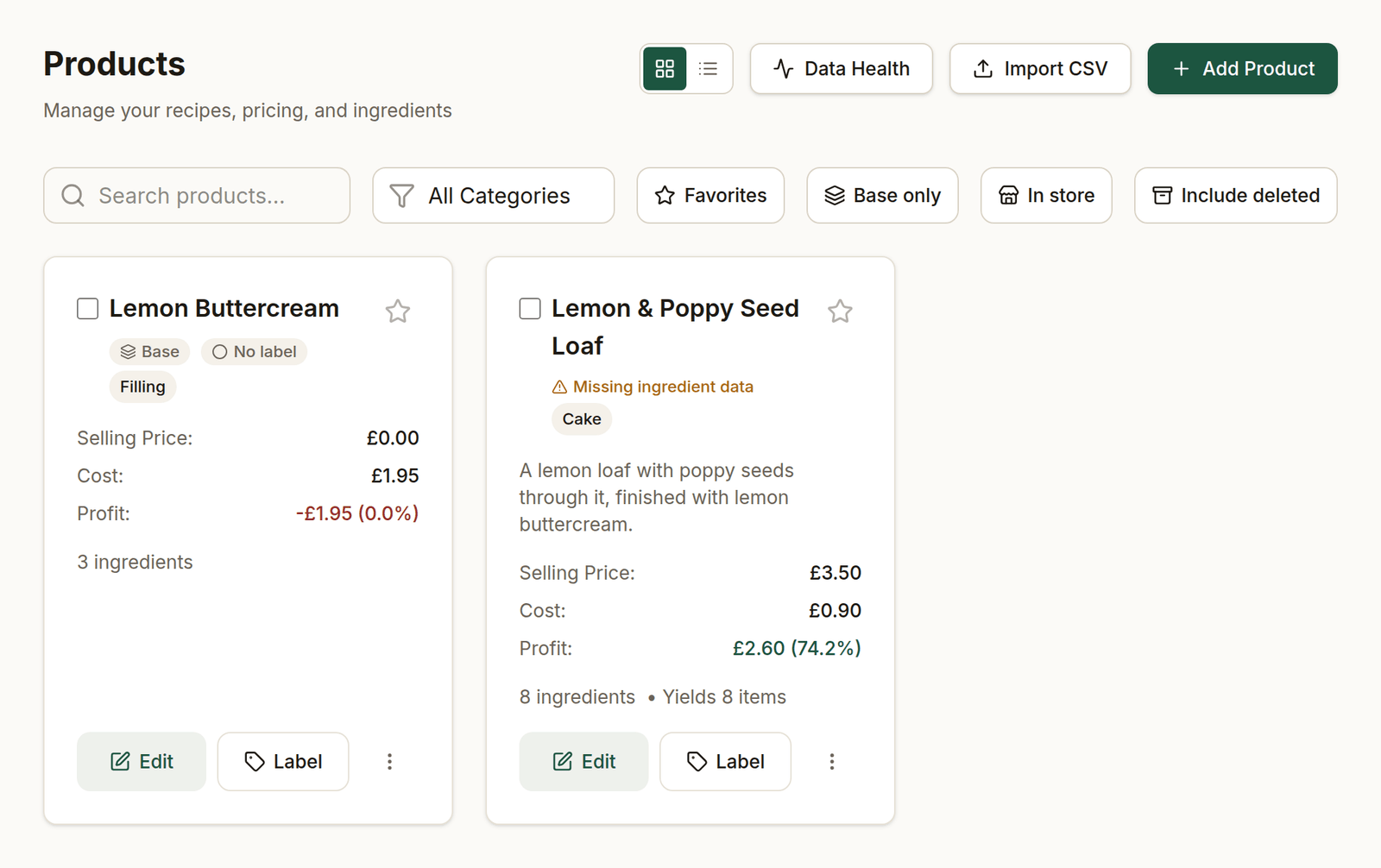
Your products, with cost and margin worked out from the recipe.
Creating a product
Go to Products in the sidebar and click Add Product. Fill in:
- Product name — e.g. "Sourdough loaf".
- Category — optional, for grouping (e.g. Breads, Cakes).
- Description — optional. You can write it yourself or use Generate with AI once you've added ingredients.
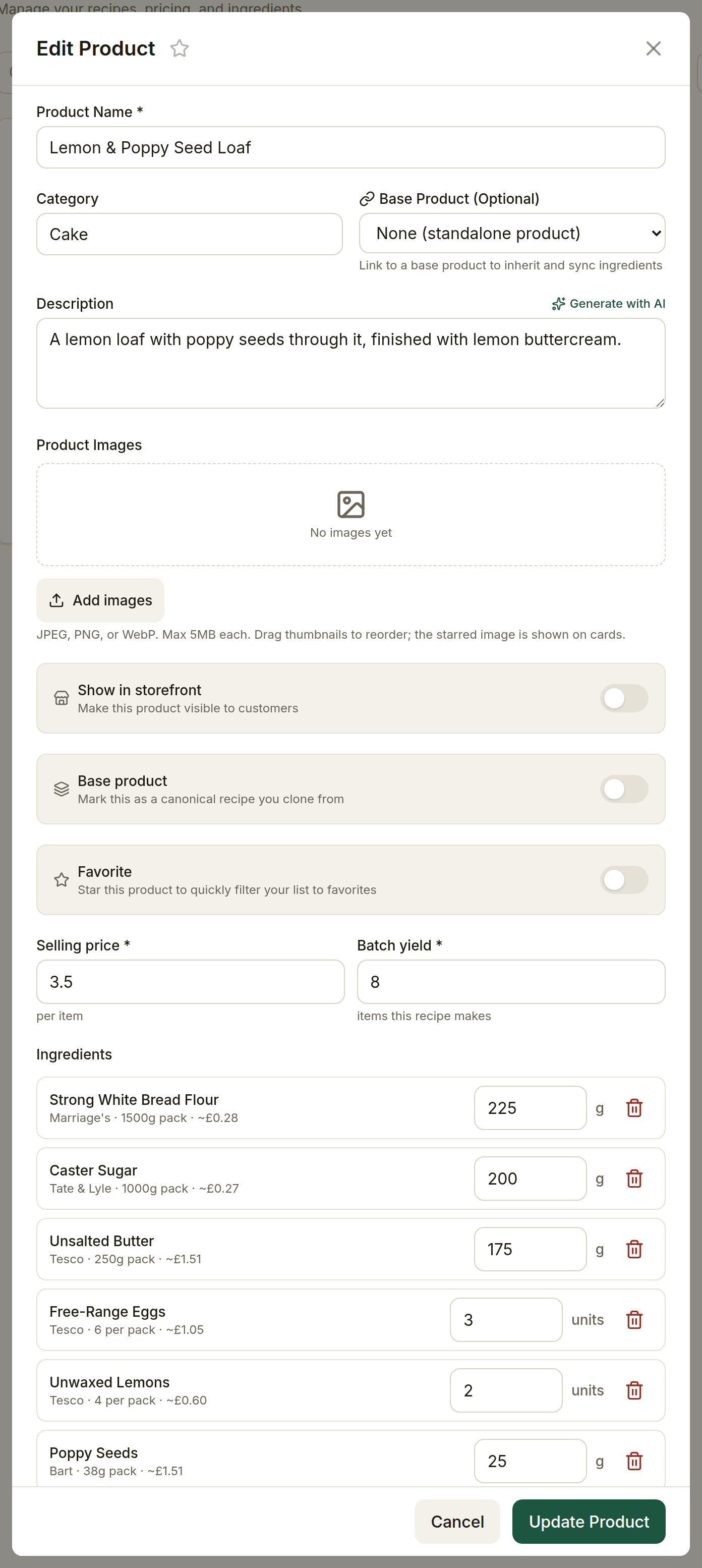
The top of the product form.
Adding ingredients to the recipe
In the Ingredients section, click Add ingredient for each line. Each line is either:
- An ingredient — chosen from your ingredients list, with a quantity (the unit is filled in for you). The cost is calculated automatically.
- A component product — another of your products used as a sub-recipe (for example a filling or a sponge base). This lets you build up complex items without re-entering ingredients.
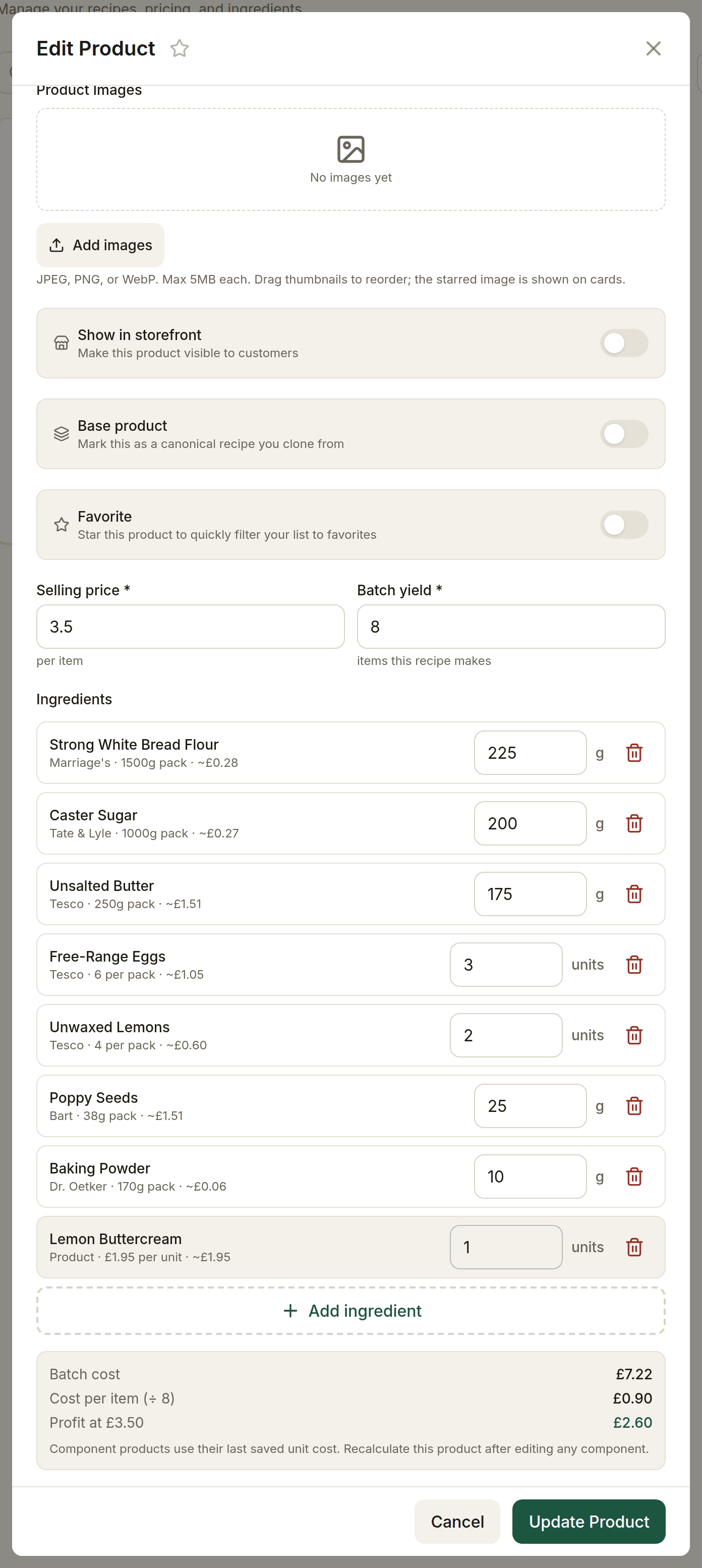
A recipe with seven ingredients and one component product. The summary underneath adds up the batch cost, the cost per item, and the profit at your selling price.
Quantities are always per batch, not per finished item. Enter what goes into one batch, and set the batch yield below.
Component quantities: what number to type
This is the one place it's easy to enter something that looks right and isn't, so it's worth being precise.
A component's quantity is a count of that component's finished items — not grams. It's measured in the same units as the component's own Batch Yield.
Worked example. Say you have:
- Vanilla sponge — one batch uses 800 g flour, 600 g butter, 8 eggs, and its
Batch Yield is
4(one batch makes four sponges). - Layer cake — uses two of those sponges.
On the Layer cake, add Vanilla sponge as a component with quantity 2 — two
sponges. BakeCheck works out that two sponges are half a batch, and rolls 400 g
flour, 300 g butter, and 4 eggs into the Layer cake's label and cost.
The common mistake is typing 250 meaning "250 g of sponge". Because the number
is read as 250 sponges, that would pull in over sixty batches of ingredients.
So before using a product as a component, check its Batch Yield is right. If a
component is something you make one lot of at a time — a single jar of filling,
one batch of marzipan — leave its yield at 1 and enter the number of batches you
use (0.5 for half a batch is fine).
Why the quantity matters for labels, not just costs
Allergens are all-or-nothing: an allergen in a component appears on the parent label whatever quantity you enter, so a wrong number will not lose an allergen.
But UK ingredient declarations must be listed in descending order of weight, and that order comes from these quantities. A component quantity that's out by a factor of ten reorders the list, and the label is then wrong even though every allergen is present and correctly emphasised. It will also throw out your cost per item.
If a generated label lists things in an order that surprises you, check the component quantities first.
Yield and pricing
- Yield quantity — how many finished items one batch makes. The app divides the batch cost by the yield to give you a cost per item.
- Selling price — your price per item. The app shows profit and margin.
Handy actions
- Import CSV — bulk-import products and their ingredient lists from a spreadsheet. Use the Download template link in the import window for a correctly-formatted starter CSV. Import your ingredients first, since each product line links to an existing ingredient by name.
- Clone a product to create a variant quickly.
- Cost opens a full breakdown of where the cost comes from, line by line. To bake a bigger or smaller batch, type how many items you want under Scale the recipe, or pick Half, ×2 or ×3. The quantities, batch cost and calories change to match; the cost per item stays the same. Scaling only changes what's shown, so your saved recipe, costs and labels stay as they are.
- Base product lets a product inherit and stay in sync with another's ingredients — useful for variations of the same recipe.
Archiving and restoring a product
Archiving a product is reversible — nothing is destroyed. It disappears from your product list, your storefront and any menus it is on, and stops counting towards your plan, but its recipe, costs, and label history are all kept.
Use the Include archived toggle on the Products page to see them: archived products appear dimmed with an Archived badge and a Restore button that puts them back as they were.
To destroy a product for good — a test recipe, or one added by mistake — tick Delete it permanently instead on the archive dialog, or use Delete permanently from an already-archived product's menu. That removes the recipe, the images and every label version with its approval history, and cannot be undone.
BakeCheck refuses a permanent delete when something real still depends on the product: if it appears on an order, is part of another product's recipe, or is in a box, it archives the product instead and tells you which. Archiving already does the useful part — it hides the product and frees its plan slot.
Note that archiving a product also releases any ingredient that was only used by it — an ingredient blocked from deletion because it's "used in products" may become deletable once those products are archived. See Your plan, archiving, and deleting.
Data health
The Dashboard's Product Data Health card highlights products missing ingredients, price, category, or cost, and — listed first — products that cannot be labelled because an ingredient somewhere in the recipe has no composition or no allergen declaration.
Two things stop a label being generated at all:
- the product has no ingredients;
- an ingredient in it (including through a component product) is missing its composition or allergens.
Both are listed on that card, with the ingredients to fix named.
Next: with a product and its ingredients in place, generate a label.